The answer to Why realmiptv Buffers can involve your Wi-Fi, other household traffic, the player, your connection allowance, or a channel or service interruption. At RealMIPTV, we want you to identify the pattern before changing equipment or buying more access. Our RealMIPTV plans define how many streams can play together; the checks below help you work out whether that allowance is relevant to your problem.
Begin with one device, one stream, and a note of what actually happens. A loading circle, a sign-in error, and a slow remote response are different symptoms. Treating them as the same problem can send you through unnecessary purchases and settings changes.
This guide helps existing subscribers troubleshoot and gives new buyers a practical way to prepare a device, evaluate trial access, and choose a subscription for their household.
Table of Contents
Table of Contents
Why realmiptv Buffers: start with the pattern
Buffering occurs when playback needs to wait for more video data. That description identifies the interruption, but it does not identify which part of the delivery path caused it. An app can also freeze or lose its session in ways that look similar from the sofa.

Start by describing the scope. Does one channel stop while others play? Does every stream fail on one television, or does the problem follow the account to another device? Close the first stream before testing a second device so the comparison stays within your connection allowance.
| What you observe | First comparison | What the result may suggest |
|---|---|---|
| One channel pauses; others play | Try another available channel on the same device | A feed-specific issue deserves investigation |
| One television struggles; another device works | Compare them sequentially on the same network | The first device, its app or its connection needs attention |
| Several online services struggle | Check the home network and internet connection | The issue may extend beyond RealMIPTV |
| Problems start when extra streams open | Stop the additional sessions | Check both stream allowance and network load |
| Playback changes with network conditions | Repeat the same stream with one network change | The connection path may influence the result |
These are diagnostic clues, not confirmed fault assignments. A successful comparison narrows the next check; it does not prove that every other part of the system is healthy.
7 essential checks for smoother playback
1. Check Wi-Fi at the television
A connection test beside the router does not describe reception behind your television. Check the network on the device that actually plays the stream. Confirm that it is connected to the intended home network rather than an old network or an unsuitable access point.
For Fire TV, Amazon’s Network Status Tool guidance explains how to open Settings and Network. The tool distinguishes the connection between Fire TV and the router from the router’s internet connection. Some compatible models also provide a speed test and additional network information. digprjsurvey.amazon.com
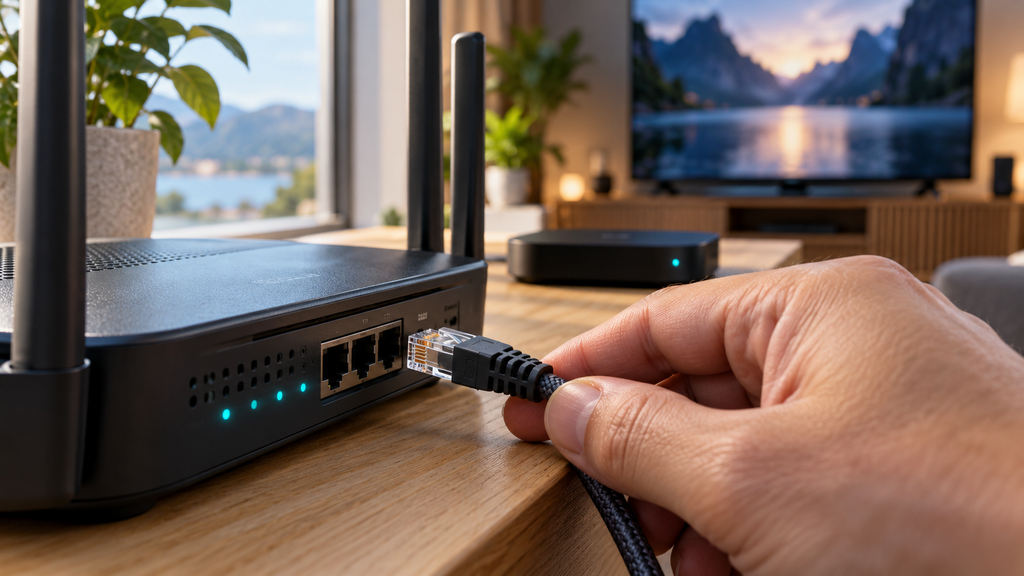
Where your hardware supports it, compare Wi-Fi with an Ethernet connection. Keep the device, player and channel the same so the network link is the main change.
If the wired comparison improves playback, investigate the wireless connection before replacing the player or extending the subscription. Repeating the comparison is more useful than assuming one improvement proves a permanent fix.
2. Reduce competing household traffic
Look at what else happens when the pauses begin. Large downloads, software updates, cloud transfers and several video streams can coincide with a busy household connection. The useful question is whether playback changes when that activity stops.
Pause discretionary downloads on devices you control, then repeat the same viewing test. Keep your RealMIPTV stream count unchanged. This separates general household traffic from the subscription’s simultaneous-stream allowance.

Hypothetical example: a Canadian household notices interruptions while a computer downloads a large update. Playback improves after the download is paused and worsens when it resumes. That pattern makes competing traffic a useful lead; it does not establish a service-wide outage.
If a lower-quality version of the same content is available, compare it without changing other settings. A different result helps you describe the conditions the setup handles. It does not establish a universal internet-speed requirement or a guarantee for every programme.
3. Why realmiptv Buffers when the internet link is unstable
Separate the link inside your home from the connection reaching your router. If other devices also lose internet access, check your modem or router status and your internet provider’s own service information.
Google’s Google TV troubleshooting guide includes checking the network, adjusting router placement, restarting the router and using a cable where supported. Follow the instructions appropriate to your equipment, then repeat the viewing comparison. Google TV Help
A fast test result is useful information, but it describes a particular test at a particular time. It does not independently certify the entire route to every video source throughout an evening.
Keep a short record of when interruptions happen and whether other services are affected. A repeated evening pattern is worth reporting, but timing alone does not prove congestion, intentional throttling, or a RealMIPTV server fault. Use the observations to guide the next investigation.
4. Restart and update the player and device
If menus respond slowly, the app closes unexpectedly, or the same stream works on another device, examine the local setup. Restart the player and streaming device, then check for available app and system updates through their official update channels.
Google’s device guidance includes system updates and a restart. Menu names vary across platforms, so use the instructions for your particular device rather than applying a Fire TV menu path to a Samsung or LG television. Google TV Help
Keep the normal player settings while establishing a baseline. Changing several playback settings and reinstalling the app at the same time makes it difficult to identify which action affected the result.
If app documentation recommends clearing cache, follow that guidance. Clearing app data and a factory reset are more disruptive operations that may remove saved setup information. Keep your supplied credentials available before taking either step; start with the simpler restart and update checks.
5. Match active sessions to your connection allowance
A RealMIPTV connection allows an active stream. Our order form offers one through five connections. Installed apps and devices you own are different from sessions currently playing, so count actual playback at the moment the problem occurs.
Close any stream you have left running before testing another screen. Also check whether a player feature is opening more than one stream. Describe the feature to support if its connection use is unclear.
Hypothetical example: one person watches television while another opens a separate programme on a tablet using a one-connection subscription. The household needs to examine its simultaneous-viewing allowance before treating the second session’s failure as a speed problem.
Exceeding an allowance may produce playback failures or interruptions, depending on the service and player behaviour; it does not always appear as classic buffering. Buying extra connections addresses additional concurrent viewing. It does not repair weak Wi-Fi or an unstable channel feed.
6. Compare an existing VPN setup carefully
If you already use a VPN on your home setup, include its current state in the test record. Compare playback with your normal connection and with that existing VPN configuration, keeping the device, player and content unchanged.
Record the result rather than assuming that a VPN must improve streaming. A change in playback indicates that the tested connection conditions differ. It does not, by itself, prove intentional interference by your internet provider.
For example, if one connection works and the other repeatedly stalls, that is useful information for troubleshooting the route. It is not enough evidence to name a single cause across the entire delivery chain.
Our website does not describe a VPN as necessary for every setup. Establish the behaviour of your ordinary connection before adding another paid service to the household’s viewing costs. Keep any account or network restrictions attached to the service you are using.
7. Recognise a channel or service interruption
A feed or service problem remains possible after local checks. If one channel repeatedly fails while several others play on the same setup, report that channel and the approximate time. Repeatedly resetting the television is unlikely to provide useful new evidence in that situation.
If many channels fail, compare a second supported device sequentially. Note whether the problem occurs with live television, on-demand content, or both. Those distinctions help describe the scope without claiming to know the server-side cause.
Our published Terms of Use acknowledge that service interruptions can occur. They also explain that specific content can vary by region and change over time. We do not treat a subscription term or a catalogue size as a promise that every stream will remain uninterrupted.
The practical stopping point is a reproducible report. Once you have that, preserve the results and request an investigation instead of repeating the same settings changes indefinitely.
Choose connections, duration and budget
Understanding Why realmiptv Buffers helps you separate a setup issue from a purchasing decision. Choose additional connections when your household needs additional simultaneous streams. Choose a longer term when the access period suits your plans and budget.
Our published offer combines live channels, on-demand movies and series, an electronic programme guide and replay functionality. It lists 15,000+ live channels and 40,000+ on-demand movies and series. Check the programmes you actually want, since overall catalogue figures do not establish the availability of an individual title or replay.
| Maximum screens playing together | Connection choice | Household example |
|---|---|---|
| 1 | 1 connection | One viewer switches between permitted devices |
| 2 | 2 connections | Two people watch independently |
| 3 | 3 connections | Three simultaneous viewing sessions |
| 4 | 4 connections | Four screens regularly play together |
| 5 | 5 connections | Five concurrent household sessions |
Our pricing page presents three-, six- and twelve-month options. Compare the full access period and total payment for the connection count you need. A displayed monthly equivalent is a comparison figure for prepaid access, rather than a promise of monthly instalments.
RealMIPTV pricing is denominated in US dollars under our published terms. Canadian buyers should review the payment provider’s converted amount and any provider fees. Keep player charges separate from the service total; a paid app feature does not itself supply a RealMIPTV subscription.
Before paying, confirm the final USD total, complete access period including any bonus, and correct RealMIPTV support contact for the order. Keep that confirmation with your purchase information.
Prepare your player and evaluate trial access
Our installation guide covers setup routes for Smart TVs, Fire TV, Android, Apple devices, Windows and macOS. Identify the exact model and operating system before selecting a compatible player. App availability can differ between devices.
Use an official app store or the developer’s official distribution route. Check any app purchase, premium-feature charge and renewal terms independently from your RealMIPTV subscription.
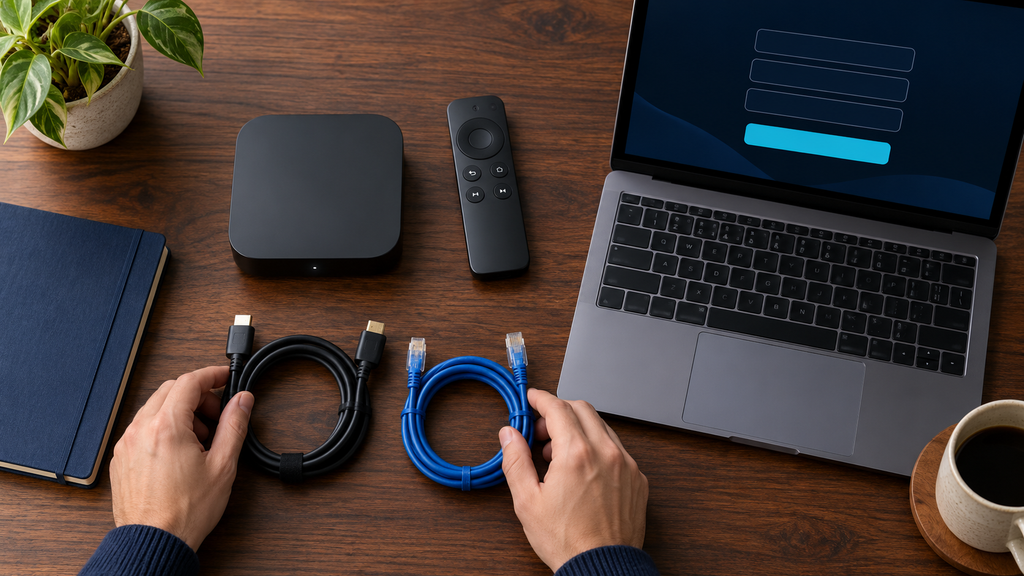
Our setup guidance describes Xtream Codes login using a server URL, username and password, as well as M3U playlist setup in compatible players. Follow the method supported by the player you choose. If the account will not sign in, use our IPTV login guide to check the credentials before troubleshooting an active stream.
Our trial page advertises free access, but does not publish a fixed trial duration. When trial access is arranged, evaluate the device and network you will actually use, including your priority channels and on-demand viewing.
Try the setup during your normal viewing routine. A successful trial is useful evidence about that session; it does not guarantee future performance. Use the result to choose an initial term with appropriate expectations.
Order and activate your subscription
The current purchase route from our pricing page leads to the RealMIPTV subscription form.
- Choose new access or renewal. Match the request to your account situation.
- Enter your name, email and country. Check the email address because the page says order information will be sent there.
- Select your device category. Use the option that describes the equipment you intend to configure.
- Choose duration and connections. Review both fields together and check the final order details.
- Select an available payment method. The form lists PayPal and credit card choices. Submit the request and follow the order and payment instructions supplied.
- Configure activated access. After payment confirmation and receipt of credentials, use the installation guide to set up the player.
The website describes delivery through email and WhatsApp after payment verification. Keep the order confirmation and check the access period and stream allowance received. Configure the main viewing device first, then add other permitted devices within your plan’s conditions.
Get useful support and understand refunds
RealMIPTV advertises WhatsApp support for setup and account questions. Use the verified contact associated with your order and send a short report containing the device model, player version, affected content, local time and time zone, and the comparisons already completed.
For example, explain that one channel fails on two devices tested separately, while other channels play. That is more actionable than reporting only that the service “does not work.” Hide passwords, credential-bearing playlist links and payment details in any image you send.
Our published terms state that subscriptions are prepaid and do not auto-renew. Access expires at the end of the purchased period; continuing requires another purchase.
The refund policy gives eligible first purchases a seven-calendar-day request window from the original purchase date. Conditions and exclusions apply, including exclusions for renewals, repeat requests, late requests, terms violations, and issues caused by the customer’s internet, equipment, software or third-party app configuration.
Requests go through official WhatsApp support with purchase details. The policy does not provide partial or prorated refunds for unused time after the guarantee period. Review these conditions when choosing the term; troubleshooting does not automatically establish refund eligibility.
Frequently asked questions
Why does RealMIPTV buffer even when my speed test is fast?
A speed test checks a particular connection at a particular time. Compare the stream on the viewing device, review its Wi-Fi link, and check whether the issue affects one channel or several. The test result alone cannot identify the cause.
Does buffering always mean RealMIPTV has a server problem?
No. Local connectivity, other household traffic, the player, account limits and feed interruptions can produce different playback problems. Use sequential comparisons to narrow the scope before assigning a cause.
Will more connections stop buffering?
Additional connections allow more concurrent viewing. They are relevant when the household needs more streams than the purchased allowance. They do not fix weak Wi-Fi, app problems or a failing channel feed.
Should I use Ethernet instead of Wi-Fi?
If the device supports Ethernet, compare it with Wi-Fi while keeping the stream and player unchanged. A repeatable improvement provides a useful lead about the wireless connection; hardware compatibility still matters.
Do I need to buy a different IPTV player?
Start with a restart, official updates and the correct setup method. Check compatibility before paying for another app. Player fees and RealMIPTV access are separate, and another player is not a guaranteed cure.
Is there one internet speed that guarantees smooth playback?
No universal figure in this guide guarantees every stream. Content, concurrent household use, the actual device connection and service conditions vary. Evaluate your intended setup instead of treating an advertised internet package speed as a complete diagnosis.
Can I test RealMIPTV before choosing a longer term?
Our website advertises a free trial without a published fixed duration. Evaluate access under the conditions supplied when the trial is arranged, using your own device and priority content.
Will a longer subscription renew automatically?
Our published terms state that subscriptions do not auto-renew. A longer prepaid term changes the access period; it does not create an automatic renewal or a guarantee of uninterrupted playback.
Choose a plan around your viewing needs
Working out Why realmiptv Buffers starts with a clear comparison: one device, one stream, and one change at a time. Use the results to address the setup, report a reproducible content issue, or identify a genuine need for additional simultaneous connections.
Once your device and viewing requirements are clear, choose an access period and connection allowance that fit the household. Compare RealMIPTV plans and select your subscription.