Your iptv login connects a compatible television player to your viewing account. For RealMIPTV, our installation guide uses a server URL, username and password supplied after purchase; these details belong in the player’s provider-login fields. If you need a new account or renewal, start with our RealMIPTV subscription form.
Already subscribed? Retrieve your original activation message before purchasing again. A player account, an order email and television access serve different purposes, so the quickest route back to viewing is identifying which account the screen actually requests.
This guide explains those differences, seven checks before signing in, practical setup steps and how to choose enough connections for your household.
Table of Contents
Table of Contents
What does an IPTV login include?
There is no universal sign-in that works with every IPTV company or application. Your viewing credentials identify an account on the server your provider supplies. Changing the app does not create a subscription, extend an expired account or increase its stream allowance.

Our installation guide describes Xtream Codes API setup using three separate entries. Some compatible players also accept an M3U playlist URL; use the format supplied for your account rather than combining fields from different methods.
| Information | What it does | Where it belongs |
|---|---|---|
| Server URL | Identifies the provider’s service address | The server or URL field for Xtream setup |
| Provider username | Identifies your viewing account | The provider username field |
| Provider password | Authenticates that viewing account | The provider password field |
| M3U playlist URL, when supplied | Provides a complete playlist address | The M3U or playlist URL field |
| Player account | Manages the app’s own account or paid features | The player’s separate account screen |
| Order email | Receives purchase information | The order form and purchase correspondence |
An optional playlist name is usually a label you choose for recognition. It does not replace the provider username. Likewise, an email used to buy a subscription is not automatically the username needed by your television player.
Treat a full playlist link as confidential because it can contain account credentials. Keep activation details privately and hide passwords, complete playlist addresses and account identifiers when sharing troubleshooting screenshots.
Seven checks before using your account
1. Choose the correct IPTV login for your player
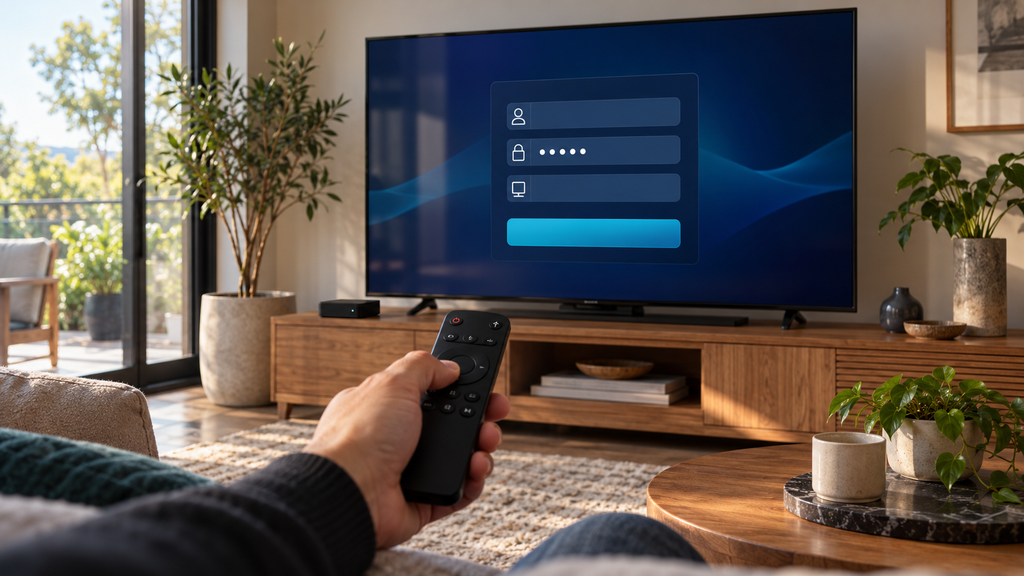
Read the screen heading before entering anything. A request for an app account, a paid-feature upgrade or an app-store purchase belongs to the software provider. A playlist screen asking for server details belongs to the viewing-account setup.
This distinction matters if you have just bought a television subscription but the app still displays an upgrade offer. Buying the upgrade will not repair incorrect provider credentials. Return to the playlist or provider-account section and select the method that matches your activation instructions.
2. Copy the supplied server address exactly
The service address may differ from the public website where you ordered. Do not substitute the RealMIPTV homepage, a search-result URL or the subscription-form address for the server supplied with your account.
Preserve the scheme, hostname, port and any required path exactly as instructed. Avoid adding spaces, changing HTTP to HTTPS yourself or guessing a missing port. If an address has changed, obtain the current value through your existing order or support conversation.
3. Check the username and password as plain text
Copy one field at a time. Look for spaces at the beginning or end, an accidental line break, and characters that look similar on a television keyboard. Preserve capitalization rather than relying on a device’s automatic correction.
Where the app offers a password-visibility control, use it privately to check what you entered. A successful purchase receipt does not confirm that the password currently visible in the player matches your activation message.
4. Confirm that the viewing account is active
Submitting an order form and receiving purchase information are separate from having an activated viewing account. If you have no activation details, check the correspondence attached to that order before creating another purchase.
Expiry also matters. A saved playlist can remain visible after the paid viewing period ends. Check the confirmed end date or account status; repeatedly reinstalling the player will not renew a subscription.
5. Count active streams across the household
Close playback on other devices before testing a connection problem. A television left playing in another room can still occupy a stream even when nobody is watching it.
Installed apps and simultaneous connections are different. A one-connection account does not become a two-connection account because you saved it on two devices. If the problem appears only when another screen starts, review your allowance before changing credentials.
6. Match the player to your actual device
Choose software that supports your device and the supplied account format. A television operating system, a streaming box and a phone can require different apps; a familiar app name does not establish compatibility with every platform.
The developer’s TiviMate Google Play listing identifies support for M3U, Xtream Codes and Stalker Portal. It also says the player is designed for Android TV, is not optimized for touch devices, and supplies no channels. Paid upgrades unlock application features separately from television access.
Our TiviMate subscription guide explains that separation further. Choose a suitable player first, then budget for any optional software purchase independently from your RealMIPTV plan.
7. Separate network problems from account problems
Check whether the device can reach another normal online service. Then compare the symptom: does the player reject the account, load an empty list, or display channels that fail during playback?
For Google TV, Google’s device troubleshooting guide starts with connectivity checks, system updates and restarting. Work through basic checks before destructive resets. Preserve your activation details before clearing player data or reinstalling software, since you may need to enter them again.
How to enter your details on a compatible device
Prepare the device with a working internet connection, its remote or keyboard, and your activation message. Use the developer’s legitimate distribution route or the device’s app store, and check the app’s supported platforms before installation.
For the Xtream Codes method described in our setup guide:
- Open the compatible player and choose its add-playlist or add-account option.
- Select Xtream Codes API, or the equivalent label shown in that app.
- Enter the supplied server URL, provider username and provider password in their separate fields.
- Add a recognizable playlist label if the app requests one.
- Save the account, allow the initial information to load and try one available channel.
- Check the programme guide and another content category separately after basic playback works.
For an account supplied as M3U, select the playlist-URL method and paste the complete link into that field. Do not enter a full playlist link as the server address for a different login method.
On Samsung, LG, Apple, Android and desktop systems, the available player and menu wording can differ. Follow the combination documented for your actual device. A portal-based device can also need a different activation process; do not improvise portal details from an Xtream account.
Keep the first successful configuration while testing. Changing the player, network, account and server address together makes it harder to identify which change affected the result.
What to check when access fails
An error message identifies a symptom, not necessarily its cause. The following table gives a useful next check without assuming that every app uses the same wording or error codes.
| Symptom | Check first | Useful next step |
|---|---|---|
| Account rejected immediately | Login method and copied fields | Compare each entry with the activation message |
| Player requests a software upgrade | Whether this is the app-account screen | Return to the provider playlist setup |
| Channel list appears but nothing plays | Account status, other streams and connectivity | Stop other playback and test one channel |
| One channel fails while others work | Whether the problem is limited to that channel | Report its name and the time of the failure |
| Guide is missing but video plays | Guide loading and supplied EPG instructions | Refresh using the documented guide settings |
| Previously working account stops | Expiry date and any updated instructions | Review renewal or contact account support |
Avoid buying another plan simply because one title or guide entry is missing. Loading a playlist, authenticating an account and playing a particular stream are separate stages, and each gives support different information.
If a repeatable problem remains, note the device model, app name, app version, exact error and when it started. Explain whether the same account worked previously and what changed. Share sensitive account information only through the established private support route.
Choose RealMIPTV connections and subscription length
A reliable IPTV login starts with an account sized for your actual use. Our website offers a connection selector from one to five and advertised plans across three, six and twelve months. Choose the number of concurrent streams before comparing subscription length.
| Connections | Household planning example | What to count |
|---|---|---|
| 1 | One person switches between a television and a laptop | One active stream at a time |
| 2 | Two people watch different programmes together | Two concurrent streams |
| 3 | Three rooms regularly watch independently | Three concurrent streams |
| 4 | A larger household uses four screens together | Four concurrent streams |
| 5 | Five simultaneous viewing needs within the household | Five concurrent streams |
These are planning examples, not measured household results. Four installed devices can fit one connection if only one plays at a time. Conversely, multiview can involve several active streams on one physical television; check the allowance before relying on it.
Consider a couple who watch together every evening but use a laptop separately during the day. One concurrent stream may fit that pattern. If one person starts a different programme while the television continues playing, they need capacity for two active streams instead.
A second hypothetical household has three televisions, but only two are normally used together. Count peak simultaneous viewing rather than buying connections solely from the number of televisions owned. Our terms restrict account sharing outside your household.
For price context, the advertised one-connection, three-month plan is US$24.99 upfront. Dividing that total by three gives approximately US$8.33 per month; this is a calculated comparison, not monthly billing. Canadian buyers should allow for any conversion or payment-provider charges on a USD purchase.
Compare current RealMIPTV pricing with the selected total in the order form. Some advertised single-connection offers include bonus months, so keep the confirmed total duration with your order. Do not assume a bonus extends to every connection option.
The published service description includes live television, an on-demand library, EPG and replay. Channel availability can change, and picture quality depends on the particular stream, device and connection. A successful sign-in does not establish that every programme is available or delivered in native 4K.
Order and activate your RealMIPTV account
Use the subscription page when you are ready to purchase or renew. The current form includes new-subscription and renewal choices, contact details, country, device, duration, connections and payment-method options.
Follow this sequence:
- Choose New Subscription or Renew Subscription according to your situation.
- Enter your name, email and country, then select the intended device.
- Choose your duration and number of simultaneous connections.
- Review the displayed total and the payment option available for that order.
- Submit accurate details and follow the payment instructions presented.
- Keep the order information and activation message, then configure the player using the supplied account details.
Before paying, confirm any material difference between the advertised offer and the form, including bonus duration and how activation details will reach you. The page describes order information by email, while our published account terms describe viewing credentials delivered through WhatsApp.
If you already have an account, identify it through your existing order correspondence when requesting renewal. An email address alone does not establish which viewing account should be extended when a household has several purchases.
Prefer checking the arrangement first? Our free-trial page provides a WhatsApp route to request a trial. Obtain the current access period and connection allowance before testing, then use your intended device and usual internet connection.
<a id=”renewals-support-and-refunds”></a>
Renewals, support and refund terms
Our Terms of Use describe prepaid subscriptions without automatic renewal. When the paid period ends, access expires unless you purchase another plan. Keep the confirmed expiry date, especially when your offer includes additional months.
Renewal is different from resetting a password or restoring an app purchase. If the viewing account is active but credentials are missing, use the account-support route before ordering again. If the player licence has expired, address that separate software purchase with its developer.
For account questions, use the WhatsApp help link on the current subscription page or your established purchase conversation. Provide the order reference, purchase date and a concise description of the issue. Consult our Privacy Policy for information about personal data.
The refund policy allows eligible new customers to request a refund within seven calendar days of their first purchase through the official WhatsApp channel. Conditions and exclusions apply, including renewals, subsequent purchases, repeat requests, account violations and problems caused by the customer’s internet, hardware, software or third-party app configuration.
Use the trial to check compatibility before committing. Player functions also remain subject to provider rules: our terms prohibit recording, redistribution, rebroadcasting and public display, even if a chosen app offers those controls.
Frequently asked questions
Is my order email the username for television access?
Not automatically. Use the provider username in your activation message for Xtream setup. The email entered during checkout receives order information and can differ from the username that the player needs.
Can I use one IPTV login on several devices?
Plan around the purchased simultaneous-stream allowance. Saving an account on another compatible device does not increase that allowance. Keep use within your household and stop playback elsewhere when testing a one-connection account.
Does paying for TiviMate include a viewing subscription?
No. TiviMate’s developer describes paid upgrades as access to application features, with no channels included. A RealMIPTV viewing plan and any paid player features are separate purchases with separate account details.
Why can I see channels but not watch them?
The list loading does not prove that playback is authorized or reachable. Check the subscription end date, other active streams and network connection, then establish whether all channels fail or only a specific one.
Will a password reset renew my subscription?
No. Credential recovery addresses account access, while renewal extends a paid viewing period. Check which account needs attention before changing passwords or submitting another order.
Are free codes from public websites my account details?
No. Publicly posted credentials are not the private details issued for your purchase. Use your own activation message or request trial access through our website, and avoid entering payment information into unrelated sign-in pages.
Can I move from my old television to a new device?
Check that the new device has a compatible player and supports your supplied setup method. Stop playback on the old device, follow the documented setup and confirm any device-specific activation requirements with account support.
Is every login problem covered by the refund guarantee?
No. Eligibility depends on the published refund conditions, and third-party app configuration problems are among the exclusions. Request setup help promptly and review the policy before assuming a particular issue qualifies.
Choose your RealMIPTV plan
The right IPTV login combines an active viewing account, the correct server details, a compatible player and enough simultaneous connections. Keep those pieces separate and you can choose a plan around your household’s viewing pattern, then configure it with a clear purpose for every field.
Select your duration and connections in the RealMIPTV subscription form, review the final total and keep your activation details for setup and future support.
One Response